- Best for talking-head and podcasts: Descript — edit video by editing the transcript. Nothing else is close for this workflow.
- Best free: CapCut — no watermark, strong auto-captions, genuinely capable. Falls apart on long-form.
- Best for turning long videos into shorts: Opus Clip.
- Best for pros: Premiere Pro or DaVinci Resolve with AI assists — the AI is a helper, not the interface.
- Watch the credits. Most AI editors meter their AI features. A single intense editing day can exhaust a month’s allowance on entry plans.
There are two different products calling themselves AI video editors, and picking the wrong category is the main reason people end up disappointed. One group is traditional editors with AI bolted on — Premiere, DaVinci, Final Cut. The other is editors built around AI as the interface — Descript, CapCut, Opus Clip. They solve different problems.
For most creators in 2026 the honest answer is a pair, not a single tool: Descript for long-form talking-head work, CapCut for short-form social. Here is the full picture, including what each really costs at production volume. Part of our AI video tools hub.
The best AI video editors compared
| Tool | Best for | Free tier | Paid from (Aug 2026) | Long-form? |
|---|---|---|---|---|
| Descript | Podcasts, talking head, tutorials | Yes (limited hours + credits) | ~$16/mo; ~$24/mo Creator | Yes |
| CapCut | Short-form social, captions | Yes, no watermark | ~$7.99/mo Pro | Poor |
| Opus Clip | Long video → vertical shorts | Limited | ~$15/mo | Input only |
| Runway | Generative footage + editing | Limited credits | Subscription tiers | No |
| Adobe Premiere Pro | Professional timelines with AI assists | No (trial) | Creative Cloud subscription | Yes |
| DaVinci Resolve | Colour and finishing, free desktop NLE | Yes (full app) | One-time Studio licence | Yes |
| Veed / Kapwing | Browser editing for marketing teams | Yes (watermarked) | Subscription | Moderate |
1. Descript — best for talking-head and podcast editing
Descript invented text-based video editing and is still the most mature version of it. Your video becomes a transcript; delete a word and the video deletes with it. Remove every filler word with one command. Studio Sound cleans up bad room audio well enough to skip a separate audio tool. The AI assistant extends this into multi-step instructions like “remove every um and add B-roll on the product mentions”.
For anyone who thinks in sentences rather than timelines — podcasters, course creators, YouTubers who talk to camera — this is the lowest-friction path from raw recording to finished video.
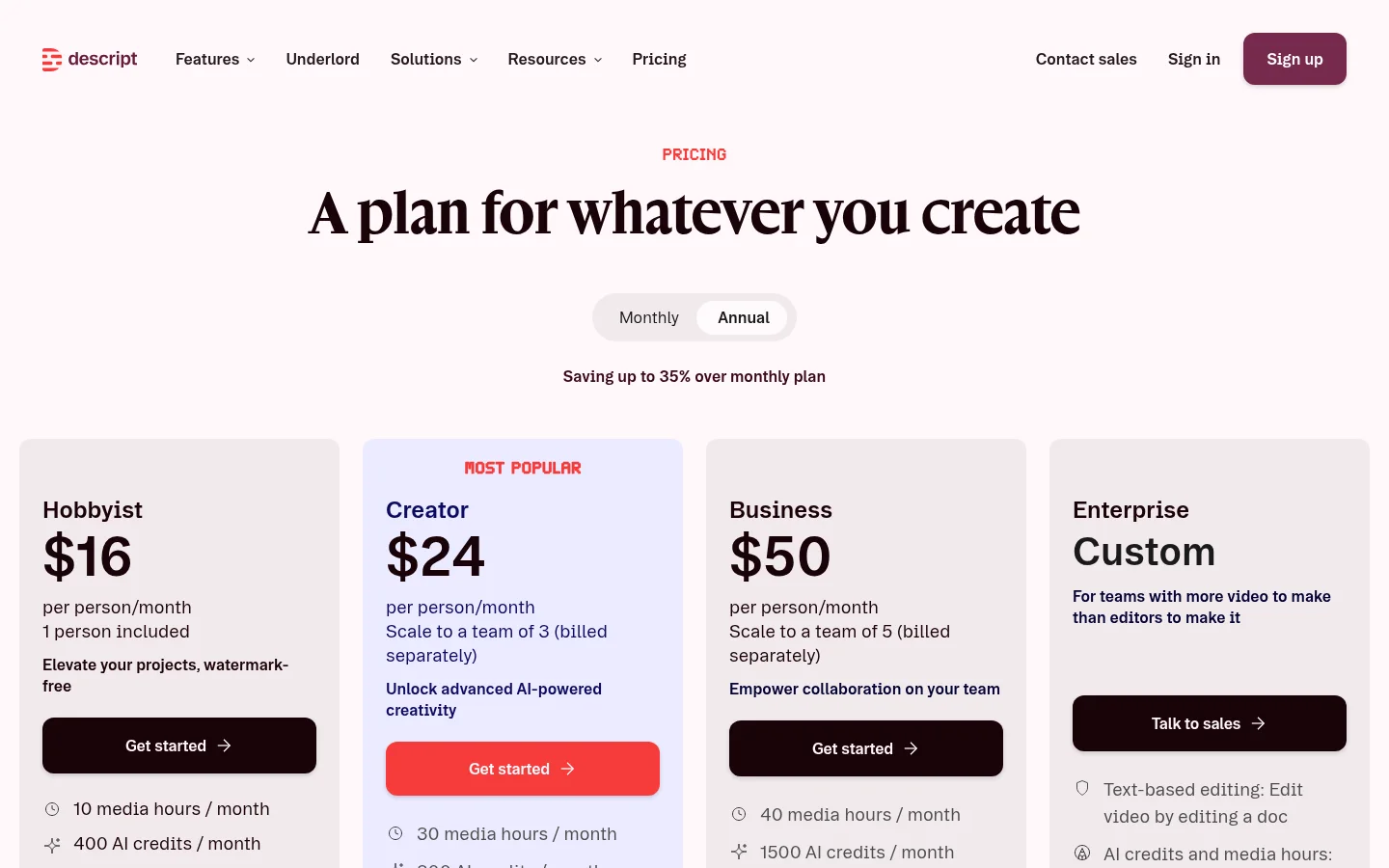
Real pricing: a free tier with limited hours and AI credits; paid plans run roughly $16/month (Hobbyist) and $24/month (Creator), with Business above that. The credit gotcha is real: one intensive editing day can consume a month’s allocation on the lower tier. If you publish weekly, plan for Creator as the floor.
Who should skip it: anyone doing motion graphics, VFX or serious colour work — that belongs in Premiere or Resolve. Also skip if you need offline editing; Descript is cloud-dependent.
2. CapCut — best free AI video editor
CapCut’s free tier is unusually generous: no watermark on exports, auto-captions that land around the low-90s percent accuracy on clear English, background removal, AI auto-edit, and a huge library of trending effects updated constantly. Projects sync between phone and desktop, which matters if you film on a phone and finish on a laptop.
Real pricing: free with most AI features included; Pro is around $7.99/month — the cheapest paid tier in this roundup.
Who should skip it: long-form creators. Every reviewer who has tried cutting a 40-minute video in CapCut reports the same thing — it is not built for it. No text-based editing, basic audio tools, limited multitrack. Use it as the short-form finisher, not the main editor.
3. Opus Clip — best for repurposing long video into shorts
Opus Clip does one job: take a long video, find the moments most likely to perform as standalone clips, reframe them vertically with speaker tracking, and add captions. If your bottleneck is turning one podcast into fifteen shorts, this removes the whole task.
Real pricing: a limited free tier; paid plans from roughly $15/month with processing-minute allowances.
Who should skip it: anyone who does not already produce long-form video. It has no editor — it needs source material.
4. Runway — best when you need footage that doesn’t exist
Runway is primarily a generative video platform with an editor attached, rather than an editor with AI features. If your workflow is mostly AI-generated clips with light assembly, keeping both in one tool saves real time. Reference-image conditioning helps keep a look consistent across shots. Our Runway review has the detail, and our guide to making AI videos covers where it fits in a full workflow.
Who should skip it: anyone editing real filmed footage. It is the wrong shape of tool for that job.
5. Premiere Pro and DaVinci Resolve — best for professionals
Both now ship substantial AI: speech-to-text and text-based rough cuts, automatic filler-word detection, scene-edit detection, AI masking and object tracking, audio cleanup. The difference from Descript is philosophical — here AI accelerates a timeline workflow rather than replacing it, which is what you want once projects involve graphics, multicam or colour grading.
DaVinci Resolve’s free version is the best-value video software on this page by a wide margin — a complete professional NLE with colour, Fairlight audio and Fusion VFX, at no cost. The paid Studio licence is one-time, not a subscription.
Who should skip them: beginners who just want captions on a talking-head video. The learning curve is weeks, not hours.
Which AI video editor should you pick?
- Podcast or talking-head long-form: Descript.
- TikTok, Reels, Shorts: CapCut (free is enough for most people).
- One long video into many shorts: Opus Clip, then finish in CapCut.
- Generated footage: Runway.
- Client work with graphics and colour: Premiere Pro or DaVinci Resolve.
- Zero budget, serious ambitions: DaVinci Resolve free.
The most common working pair is Descript plus CapCut, or Opus Clip plus CapCut. Buying one tool to do everything is how people end up paying for two anyway.
What AI editing genuinely saves — and what it doesn’t
AI is good at the tedious 80%: transcription, silence and filler removal, captions, rough cuts, reframing, audio cleanup. That is real time, often hours per video, and it is why these tools sell.
It is still bad at the 20% that decides whether a video is watchable — pacing, when to cut for emphasis, which take has the right energy, what to leave out. No tool on this list makes those calls well, and treating an auto-edit as a finished edit is the fastest way to produce content that is technically clean and completely flat.
Budget your time accordingly: let AI do the assembly, spend the time you saved on the cut.
The credit maths nobody shows you
Almost every AI editor here meters its AI features separately from the subscription. Transcription hours, AI credits, processing minutes — different names, same mechanic. The entry tier is priced to look affordable and allocated for light use.
Before subscribing annually, do this: take one real project, run it end to end on the free tier or a monthly plan, and look at what you consumed. If a single video used a third of the monthly allowance, you need the tier above. That five-minute check is worth more than any comparison table, including this one.
Bottom line
Descript is the best AI video editor for talking-head and podcast content, and worth the Creator tier if you publish weekly. CapCut is the best free option and the right finisher for anything vertical. Opus Clip solves repurposing specifically. If you already edit professionally, stay in Premiere or Resolve and use their AI features rather than switching tools. Start free on CapCut or Resolve, and only pay once you know which part of the workflow is actually costing you hours.
More in the AI video tools hub, or see Descript AI explained for a closer look at text-based editing.
FAQ
What is the best AI video editor in 2026? Descript for talking-head and podcast content, CapCut for short-form social, Opus Clip for turning long videos into shorts, and Premiere Pro or DaVinci Resolve for professional work with graphics and colour.
Is there a genuinely free AI video editor? Yes. CapCut’s free tier exports without a watermark and includes auto-captions and background removal, and DaVinci Resolve’s free version is a complete professional editor with AI tools included.
Can AI edit a video automatically? Partly. AI reliably handles transcription, filler-word removal, captions, reframing and rough cuts. Pacing, emphasis and take selection still need a human, and auto-edits used unchanged tend to feel flat.
Which AI video editor is best for YouTube? Descript for long-form talking-head videos, paired with Opus Clip or CapCut for Shorts. Creators already comfortable with a timeline get more from Premiere Pro’s AI features.
Why do AI video editors run out of credits? AI features are metered separately from the subscription because each one runs a model on a server. Entry tiers are allocated for light use, so test a full project before committing to an annual plan.
Is CapCut good for long videos? No. It is excellent for short vertical content and weak on long-form — it lacks text-based editing, advanced audio tools and robust multitrack. Use a different editor for anything over about ten minutes.